


How to Print at 7-Eleven in Japan (From 10 Yen a Page)

Stuck without a printer in Japan? Convenience stores solve that problem in minutes.
Here's how to print at 7/11 Japan, step-by-step, using the multi-copy machine inside almost every store. You can print from a USB drive, an SD card, a phone app, or a website upload called net print.
Prices start at just 10 yen a page for black and white. Family Mart works a similar way, with its own app, if that's your nearest store instead.
7/11 printer basics
Before we get into the specifics, let's review everything about 7/11 printers and copy machines.
Here are the 7-Eleven printing costs. Note that prices differ slightly depending on whether you use the multi-copy machine directly (via USB or SD card) or print via the Net Print cloud service.
Printing from USB or SD card (direct at the machine):
Black and white (B5, A4, B4, A3): 10 yen per page
Color B5/A4/B4: 50 yen per page
Color A3: 80 yen per page
Printing via Net Print (cloud upload from website or app):
Black and white (all sizes): 20 yen per page
Color B5/A4/B4: 60 yen per page
Color A3: 100 yen per page
Payment is accepted via coins (10, 50, 100, and 500 yen) or nanaco card. The machines do not accept 1 yen coins or other IC cards like Suica or PASMO.
The multi-copy machine accepts files from USB drives, SD cards, and smartphones.
Supported file types for document print include:
Microsoft Office for Windows: .doc, .docx, .rtf, .xls, .xlsx, .ppt, .pptx
Image files: JPEG (JPG), PNG, TIFF
Document files: PDF (versions 1.3 to 1.7), XPS (version 1.0), DocuWorks (versions 3 to 7)
Important note: Microsoft Office files must be saved in the Windows version format. Files created on Mac may not always render correctly. To avoid formatting errors, save your documents as PDF before printing. PDF is the most reliable format for conbini printing and works across all printing methods.
Personally, I tend to make sure my documents are in PDF format so there are no printing issues.
What to prepare before printing at 7-Eleven in Japan
Before heading to the convenience store, save time by preparing the following:
Convert your file to PDF format if possible. PDF is the most reliable format across all printing methods and avoids formatting errors with Microsoft Office files.
If using a USB drive, format it as FAT32. Some machines have trouble reading Mac-formatted drives. Save your file to the root folder, not inside nested subfolders.
If using the Net Print website or an app, register your file before leaving for the store. Note your print confirmation number (予約番号) or save the QR code screenshot.
Bring coins (10, 50, 100, or 500 yen) or a nanaco card. The multi-copy machines do not accept bills, credit cards, or other IC cards like Suica and PASMO.
Check the language setting when you arrive. You can change the multi-copy machine interface to English by pressing the language button on the screen. However, switching to English may limit some advanced printing options.
How to print a document at 7/11
This is the fastest method if your file is already saved to a USB drive or SD card. No app or website is required.
Steps to print from a USB drive or SD card:
Find the multi-copy machine inside the store.
Insert your USB drive or SD card into the correct slot.
On the touch screen, press "プリント" (print).
Choose "ドキュメントプリント" (document print) for files, or the photo option for images.
Select your file from the list. Confirm the file name on screen.
Choose black and white or color, then choose the paper size.
Confirm the number of pages and copies on the following screen.
Insert coins or pay with a nanaco card.
Press the button to start printing.
Save your document as a PDF before you arrive. PDF avoids formatting errors that Word and Excel files can cause on this machine.
Format your USB drive as FAT32 if you can. Some machines struggle to read Mac-formatted drives, which can cause errors or a blank file list.
How to upload online and print at a 7/11 store
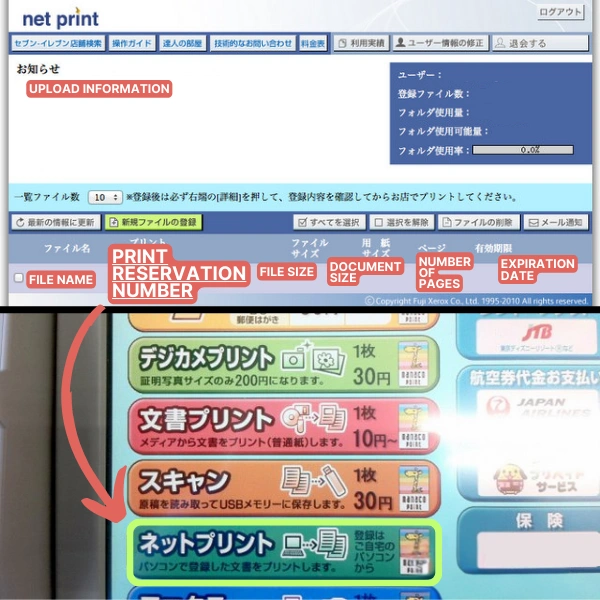
If you want to upload your documents beforehand and print them at a 7/11 store, you can do it with Net Print.
Since this site is in Japanese, using a translation extension browser is best if you don't know Japanese.
Create an account with Net Print: If you already have an account with ネットプリント , then enter your login information.
Click on 「新規ファイルの登録」: A green button will be near the bottom of your screen.
Pick the file you want to print and decide on the size and color mode.
Click 「登録する」 to continue, and you'll receive a print confirmation number (プリント予約番号).
Go to your nearest 7/11 with a printer and tap on the screen with 「ネットプリント」.
Press 確認 to continue, and enter the reservation number you received. Click 確認 to precede.
The screen will display the printing information, such as color, size, and how many pages. Click これで決定, 次へ進む to continue.
Insert the amount you owe and click 「プリントスタート」to start printing.
And you've just printed something at 7/11.
There's one more option to print at 7/11 in Japan. Continue to read on.
How do I print from my iPhone at 7/11 in Japan?
7/11 has 3 downloadable apps that you can use to print your item in Japan:
7-Eleven - Multi-copy: Print your document by holding a QR code over the multi-copy machine without needing an account. You can only print PDFs and photos.
-
Netprint app: This app requires a free account. Upload your file to receive a print confirmation number or QR code.
-
Your file stays saved for 30 days after registration. This is the best option if you want to prepare a document days or weeks in advance.
At the store, scan your QR code. Or tap "Net Print" on the screen and enter your confirmation number.
-
Kantan netprint app (かんたんnetprint): No account is required. Upload your file and receive a QR code or print confirmation number. However, your file expires at 23:59 the day after you register it, so you must print within roughly 24 hours. This app is ideal for quick, same-day printing when you do not want to create an account. If you need more time, use the regular Netprint app instead, which keeps files for 7 days.
While each app has its own specific instructions, here is an overview of how to use these apps:
Open the app and tap the [+] button or the type of document you want to print.
Select the file you want to print: Either PDFs, photos, or Microsoft Office files are best for these apps.
Adjust the print setting: Color mode, paper sizes, how many pages, etc.
Get the QR code or copy/print confirmation number (予約番号).
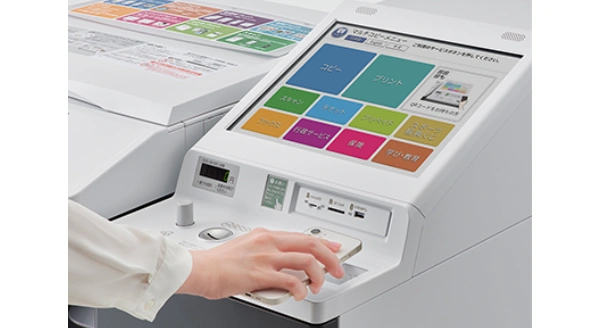
Go to 7/11 and its multi-copy machine.
Hover your QR code or tap 「プリント」→「ネットプリント」input your reservation number.
Confirm the print details on the following screen, click "Print," and pay via cash or Nanaco card.
And you've completed printing at 7/11 in Japan.
Please note: you can change the multi-copy machine language to English. However, changing it will limit the function's printing functions.
How much does it cost to print in Japan?
For the most part, the printing costs are about the same throughout different convenience stores in Japan.
Here is a comparison of convenience store printing costs in Japan for 2026.
Prices are per page and apply to copies and direct printing from USB or memory card:
Mode |
B5 / A4 / B4 |
A3 |
|---|---|---|
Black and white |
10 yen |
10 yen |
Color |
50 yen |
80 yen |
Photo print (L size) |
40 yen |
n/a |
Photo print (2L size) |
100 yen |
n/a |
Net print prices run slightly higher across every chain. Expect 20 yen for black and white and 60 to 100 yen for color.
Here's how the three convenience stores compare side by side.
Store |
Phone app |
B&W (A4) |
Color (A4) |
Photo (L-size) |
|---|---|---|---|---|
7-Eleven |
Netprint, kantan netprint, 7-Eleven Multicopy |
10 yen |
50 yen |
40 yen |
Lawson |
PrintSmash |
10 yen |
50 yen |
30 yen |
Family Mart |
PrintSmash, Famima Network Print |
10 yen* |
50 yen* |
30 yen* |
*Family Mart uses the same Sharp machine and menu as Lawson. Its document prices are expected to match, but always confirm the price on screen before you print.
Basic black and white and color prices stay close across all three stores. Photo printing shows the only real gap, and it's small: about 10 yen a print.
The bigger difference is the app. Each store's machine only works with its own app, so download the right one before you leave home.
What about printing at Lawson instead?
Lawson uses a different machine and a different app than 7-Eleven. The steps are still simple.
Lawson's copy machine is made by Sharp, not FUJIFILM. Family Mart and Ministop share this same machine and menu.
For phone printing, download the PrintSmash app instead of Netprint. Connect to the store's Wi-Fi, then send your file straight from the app.
PrintSmash only prints JPG photos and PDF files. Convert Word or Excel documents to PDF first, or the machine will show an error.
Photo prints are slightly cheaper at Lawson. L-size photos cost 30 yen, compared to 40 yen at 7-Eleven.
Can I print a photo onto a postcard at 7-Eleven?
Yes. The multi-copy machine has a "Postcard Print" option (はがきプリント).
You can buy a plain postcard at the register, or bring your own from Japan Post. Load the postcard into the manual paper tray when the screen asks.
The machine prints your photo on the message side only. You still need to write the address by hand.
Note: JPG photo files work best. JPEG 2000 format files are not supported and will show an error.
Frequently asked question
How do I print at 7-Eleven in Japan?
You can print at 7-Eleven in Japan using three methods. First, upload your file to the Net Print website and receive a print reservation number, then enter that number at the store's multi-copy machine. Second, use a smartphone app such as kantan netprint (no account needed) or the Netprint app (account required) to upload your file and generate a QR code. Third, bring a USB drive or SD card with your file directly to the multi-copy machine and follow the on-screen printing instructions. All methods let you choose paper size, color mode, and number of pages before you start printing.
Does 7-Eleven in Japan have a photocopier?
Yes. Every 7-Eleven in Japan has a FUJIFILM multi-copy machine that can print, copy, scan, and fax documents. These machines are available 24 hours a day, 365 days a year. You can copy documents in black and white for 10 yen per page or in color for 50 to 80 yen per page, depending on the paper size.
Can I print from my iPhone or Android phone at 7-Eleven in Japan?
Yes. Three free apps work with 7-Eleven's machine.
7-Eleven Multicopy: no account required, connects by Wi-Fi in store.
Kantan netprint: no account required, gives you a QR code.
Netprint: a free account is required, and files stay saved for 30 days.
All three apps work on iPhone and Android. Choose your file, then scan your QR code or enter your print confirmation number at the machine.
What file types can I print at 7-Eleven in Japan?
The 7-Eleven multi-copy machine accepts PDF, JPEG (JPG), PNG, TIFF, XPS, and DocuWorks files. For document print from the Net Print service, Microsoft Office files are also supported, including Word (.doc, .docx), Excel (.xls, .xlsx), and PowerPoint (.ppt, .pptx) in Windows format. For the best results and to avoid errors, save your documents as PDF before printing.
How much does it cost to print at a convenience store in Japan?
Basic black and white printing at 7-Eleven, Lawson, or Family Mart costs 10 yen per page for all paper sizes (B5, A4, B4, A3). Color printing costs 50 yen per page for B5, A4, and B4, and 80 yen per page for A3. If you use the Net Print cloud service instead of a USB drive, prices are slightly higher: 20 yen for black and white and 60 to 100 yen for color. Photo prints on L-size photo paper cost 40 yen at 7-Eleven, or 30 yen at Lawson and Family Mart.
Can I pay with a credit card or Suica at the 7-Eleven multi-copy machine?
No. The 7-Eleven multi-copy machine only accepts coins (10, 50, 100, and 500 yen) and nanaco electronic money cards. It does not accept bills, credit cards, Suica, PASMO, or other IC cards. If you need change before printing, you can ask the store clerk. Nanaco cards can be purchased and loaded at any 7-Eleven register.
Can I change the language to English on the 7-Eleven printer?
Yes. The multi-copy machine interface supports Japanese and English. Press the language button on the touch screen to switch to English. However, note that switching to English may disable some advanced functions, so the Japanese interface offers the full range of options. The on-screen steps are intuitive enough to follow even with limited Japanese.
What is the difference between the Netprint app and kantan netprint app?
The main difference is the account and the expiration date. Netprint needs a free account. In exchange, your files stay saved for 30 days. Kantan netprint skips the account step, so setup is faster. But kantan netprint files expire at 23:59 the day after you upload them. Both apps give you a QR code and a print confirmation number for the machine.
Choose Netprint if you want to plan ahead. Choose kantan netprint for same-day printing.
What if the nearest convenience store is a Family Mart, not a 7-Eleven?
Family Mart uses its own app, called ファミマネットワークプリント (Famima Network Print), instead of 7-Eleven's apps. Download it, upload your file, and get a code. Enter that code at the Family Mart machine to confirm and start printing. Basic black and white printing costs about the same as 7-Eleven.
How long does my file stay saved before I need to print it?
This depends on the app. The Netprint app now saves your file for 30 days after registration, giving you plenty of time. The kantan netprint app is faster to set up but only saves your file until 23:59 the day after you upload it, so plan to print within about a day.
In closing
Other convenience stores like Lawson and Family Mart have slightly different printing instructions, but using an app to pre-load your document lets you print it quickly without needing extra buttons on the multi-copy machines.
Whether you need to print a page or two, you can physically have your documents ready in just a few taps.
일본 우편물 처리에 너무 많은 시간을 소비하고 있나요?
가상 우편함 + 번역 서비스는 월 3800원부터 시작합니다. 30일 환불 보장.